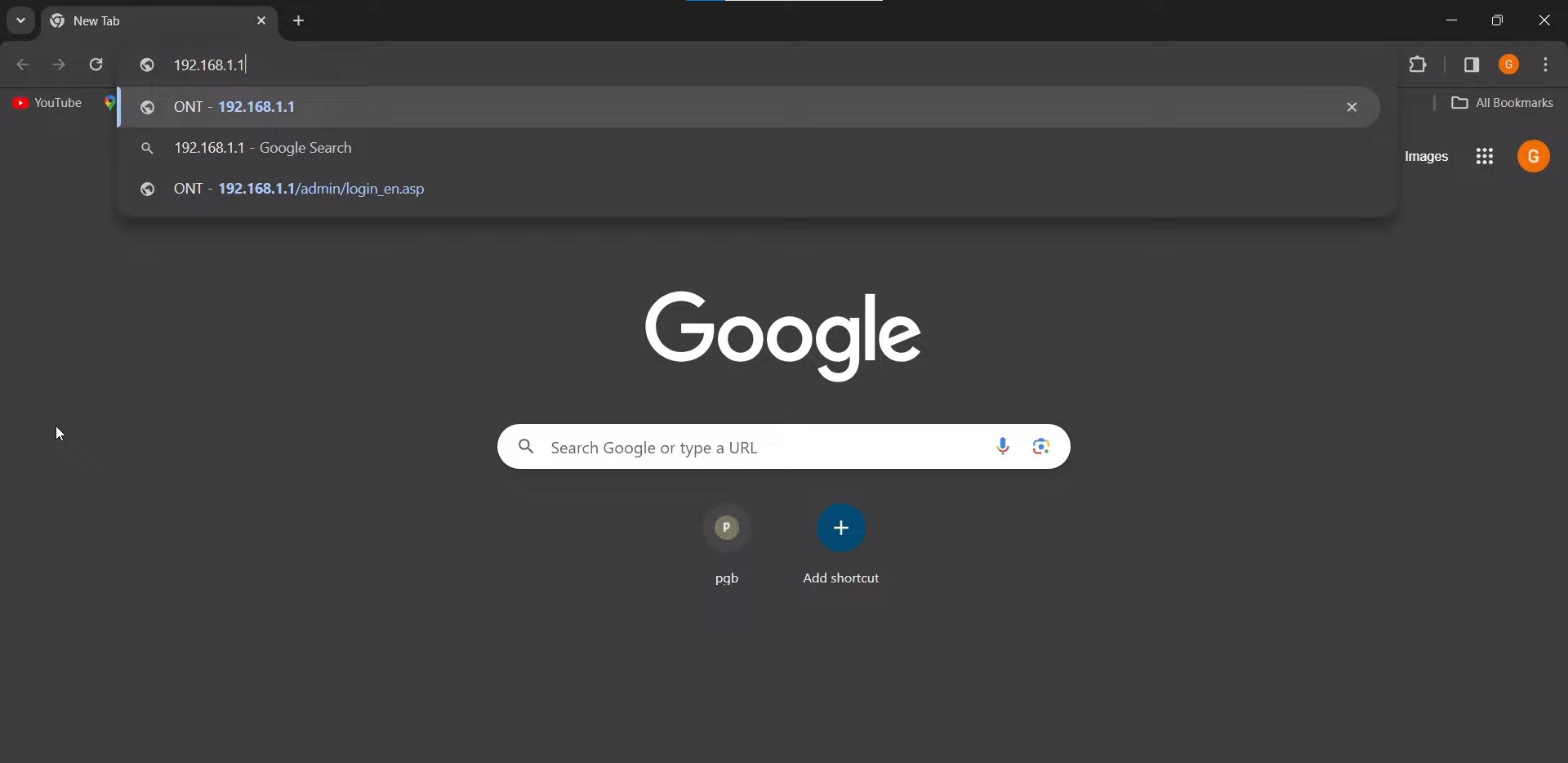
Help centreHow to change
Wi-Fi basics
How to change
your Wi-Fi password.
Follow these steps to update the password on your FTTH BSNL modem.
Wi-Fi basics
Follow these steps to update the password on your FTTH BSNL modem.
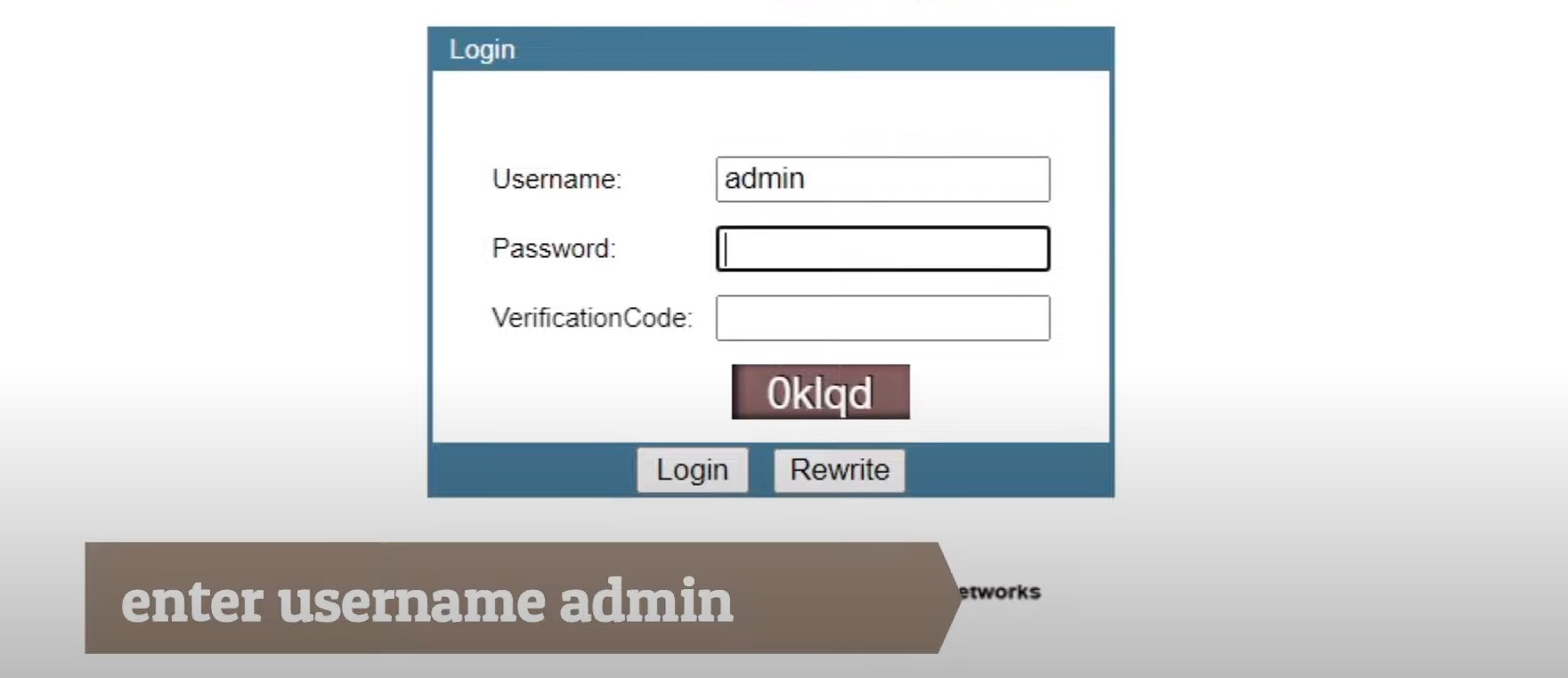
Enter the modem username and password. Contact your operator if you need the administrator login details.
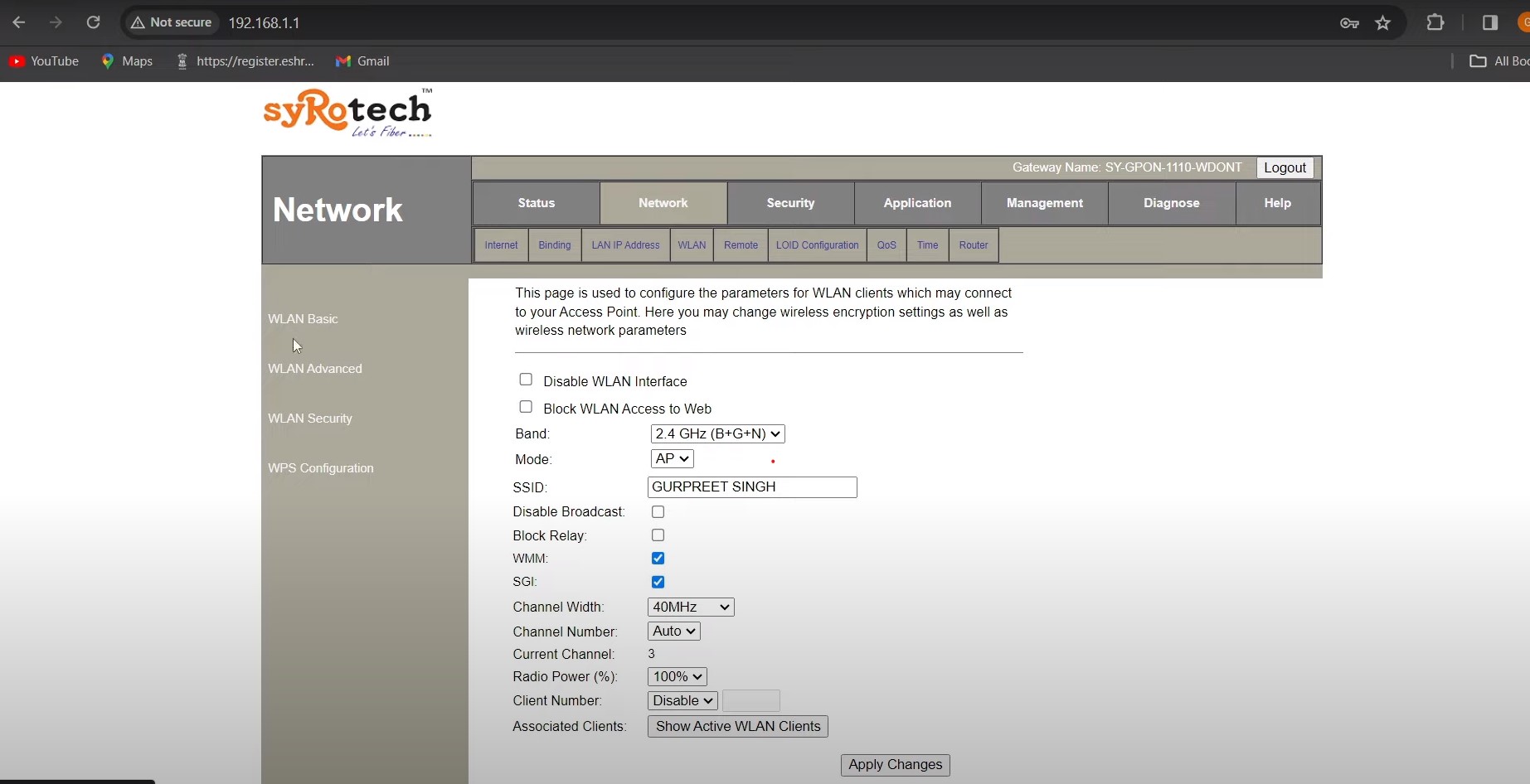
After you sign in, go to the Network section in the modem settings.
For a single-band modem, open WLAN Security and update the Pre-Shared Key. For a dual-band modem, choose the 5G menu first, then open WLAN Security and update the Pre-Shared Key.
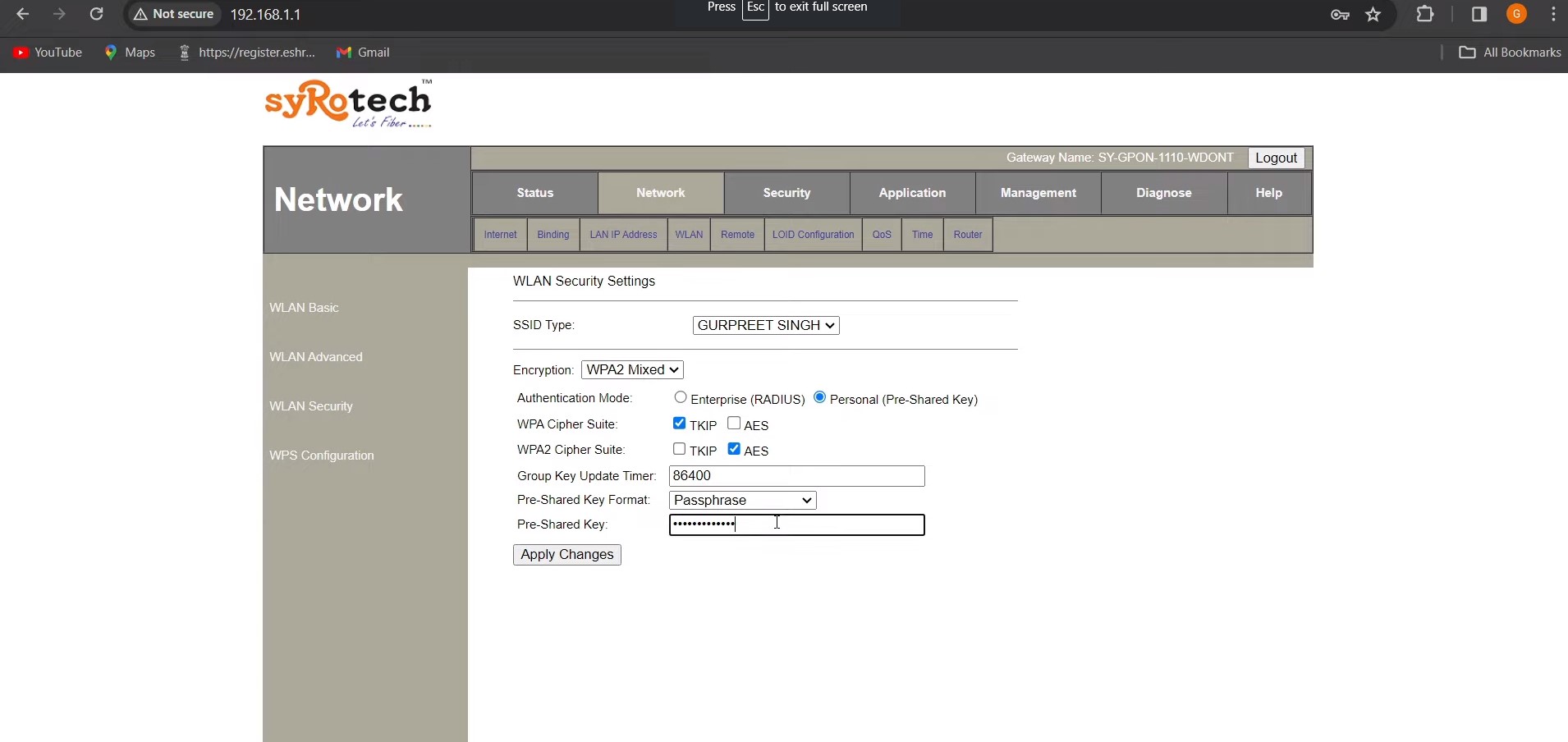
Click Apply Changes in the modem interface. Your Wi-Fi password should now be updated.
Need a hand?